Separate router trouble from console trouble
A useful first test is to compare three things: another device on the same router, a second online service on the Switch 2 and the console on a different trusted network. That separates a console-specific fault from a router outage or a single service being unavailable. Record an error code before changing settings. Changing DNS servers, disabling security protections or factory-resetting the console is not an appropriate first response to a brief interruption.
Connection tests and Wi-Fi setup
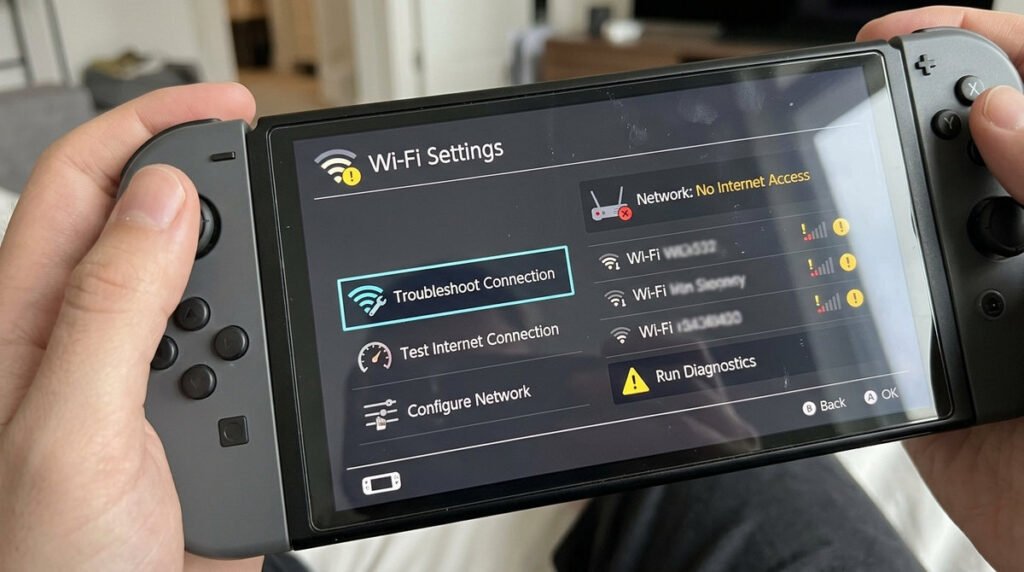
Before changing network settings, establish whether the problem is local or widespread. Can a phone on the same Wi-Fi load pages? Can the console open a different service? Is Nintendo reporting network maintenance? A download that fails on one game may be a server problem rather than a weak wireless signal. Note any displayed error code exactly; it is usually more useful to support staff than the vague description “Wi-Fi not working.”
When to change network settings or seek help
Try reversible changes first: move nearer the access point, restart the console and router in the normal way, and confirm the saved network name and password. Compare another trusted Wi-Fi network if available. Avoid immediately factory-resetting the system or disabling router encryption. If connection works but online games lag, latency and packet loss may be a separate issue from download speed. Keep screenshots of error codes without sharing your router password or account credentials.
Wi-Fi troubleshooting checklist
- Check the scope: Test another device and another game before changing network settings.
- Restart cleanly: Restart the console and router without resetting account information.
- Signal strength: Move closer to the access point and avoid congested placements.
- Credentials: Double-check the network name and password after router changes.
- Software status: Confirm system updates and check whether an online service is experiencing problems.
- Band choice: A less congested band may help if the router and console support it.
- DNS and security: Avoid random internet fixes that weaken home-network security.
- Escalate with evidence: Record error codes and the circumstances of failure before contacting support.