Pairing failures versus controller drift
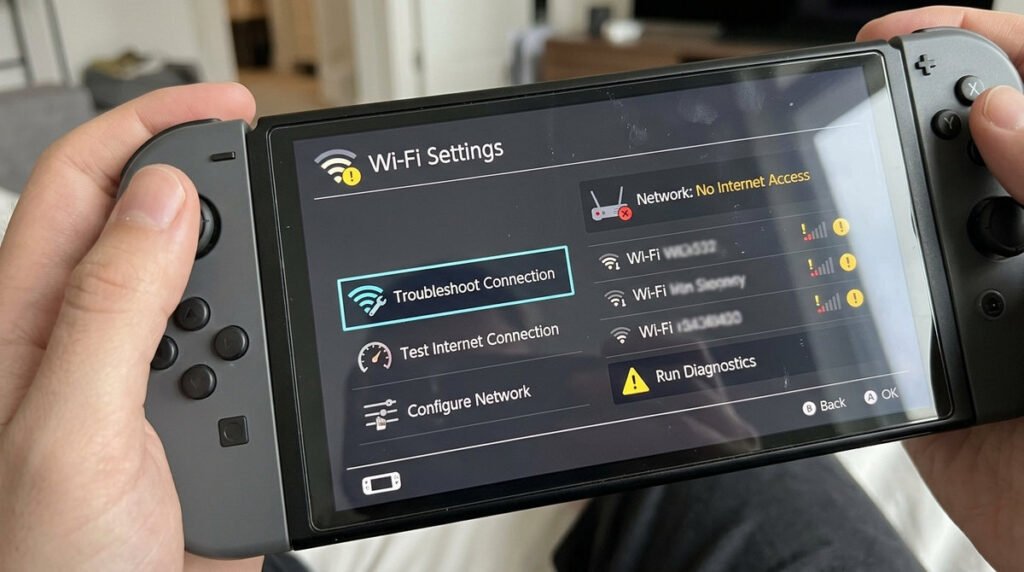
Separate input drift from wireless disconnection. If the stick moves a character while untouched, test the input in system settings and another game; if the controller drops the connection, check pairing, battery and interference. Update firmware before attempting hardware intervention. Never spray household solvents into a stick mechanism. If a new controller shows persistent movement or the housing is damaged, review warranty and service options before opening it.
Simple checks before resetting settings
An analog stick that moves a character without input is a different symptom from a controller that disconnects or fails to register buttons. Test the controller in system menus and another game so that a single game’s dead-zone settings do not mislead the diagnosis. Make sure the console and controller software are current. Re-pairing may address a wireless connection, while calibration may reveal a persistent stick deviation; neither method repairs a physically damaged sensor.
When hardware service makes more sense
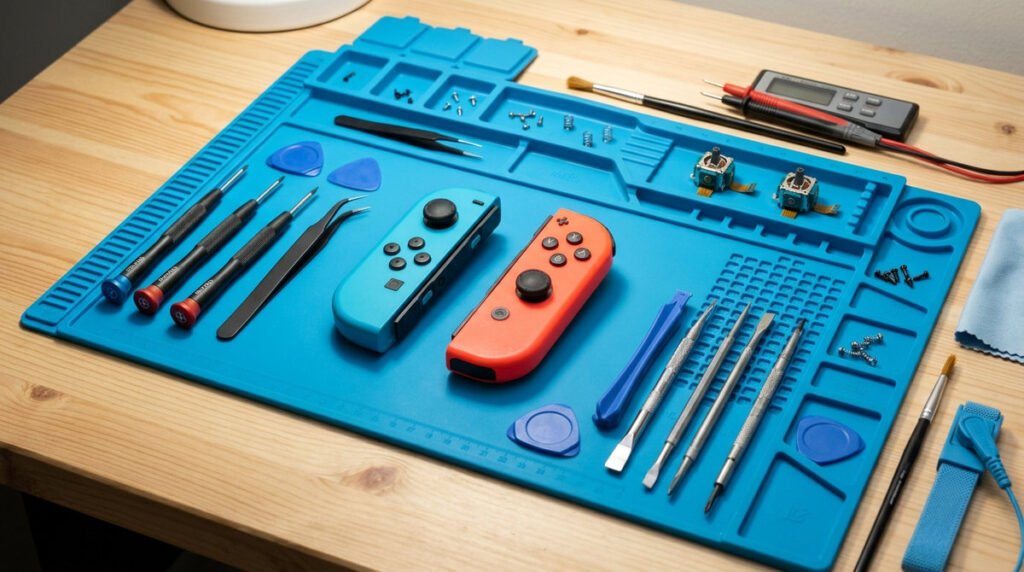
Avoid forcing cleaning fluid into the stick opening, taking apart a controller under warranty or using random “drift fix” downloads. Keep the hardware in a clean, dry area and compare behavior when attached to the system and used wirelessly if the model permits. Note when the problem began, whether it affects one Joy-Con or both, and what diagnostics show. Those details make a repair request much more actionable.
Joy-Con 2 repair checklist
- Describe the symptom: Unwanted movement while untouched differs from a controller that will not connect.
- Update firmware: Install available controller and system updates first.
- Re-pair the controller: Follow the console’s pairing and reconnect instructions.
- Calibration: Use supported settings to check input where available.
- Clean carefully: Avoid spraying liquids into control mechanisms.
- Interference: Nearby wireless devices and obstacles can affect connection quality.
- Warranty and repair: Check official service options before opening recently purchased hardware.
- Test across games: Confirm whether the same input problem appears outside one game.